

Lesson Locking lets you control the order in which members work through your course. When enabled, members must complete each lesson before the next one becomes available.
With Lesson Locking, you can:
Ensure members work through your content in the order it was designed.
Prevent members from skipping ahead to later lessons.
Combine lesson locking with drip scheduling for full control over content access.
Note: Lesson Locking is available on all Kourses plans.
Step 1: Enable Lesson Locking
Lesson Locking is found on the Drip and Access screen inside your product.
Go to your course on the Kourses products screen.
Click the Drip and Access tab in the top navigation.
Under Lesson Locking, toggle on Lock lessons in order.
Your changes are saved automatically.
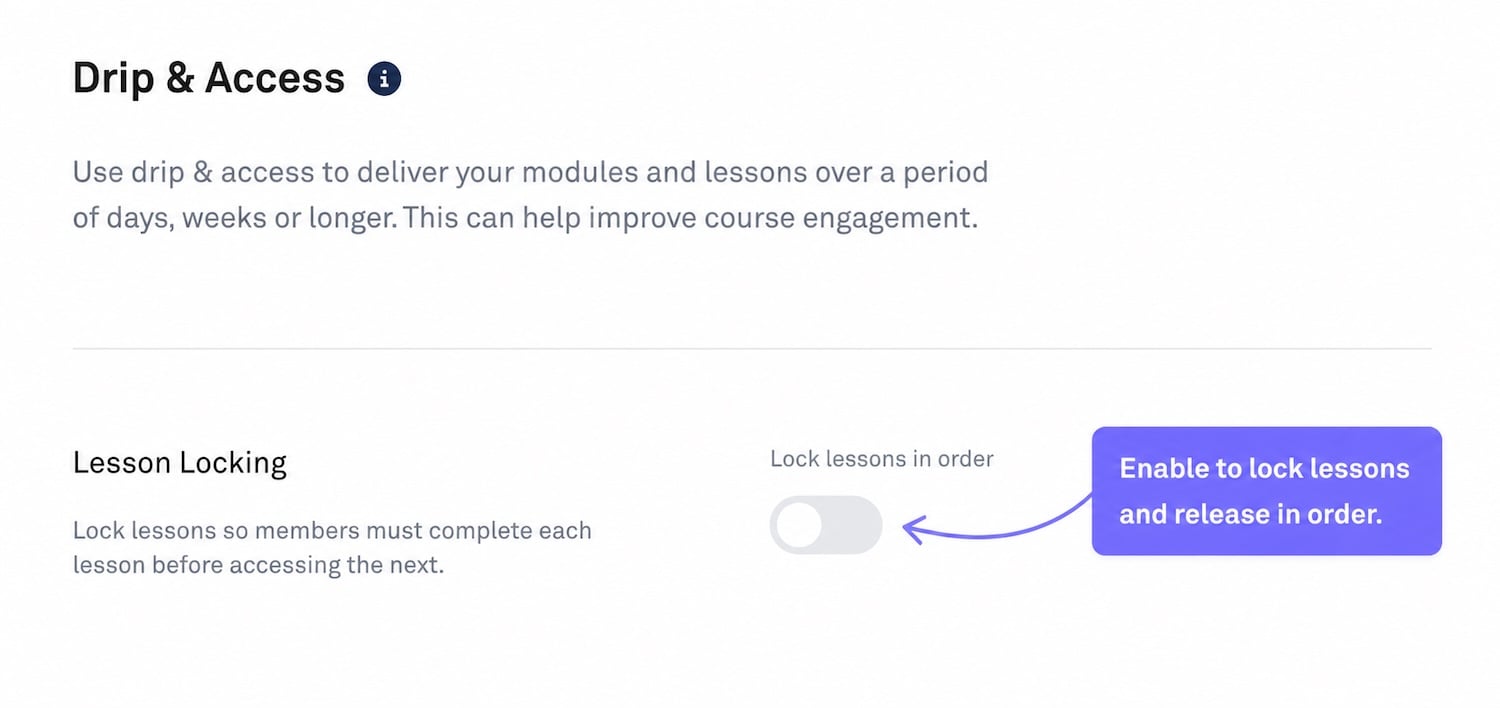
Once enabled, every lesson in the course is locked sequentially. Members must complete each lesson before the next one opens.
Step 2: What members see
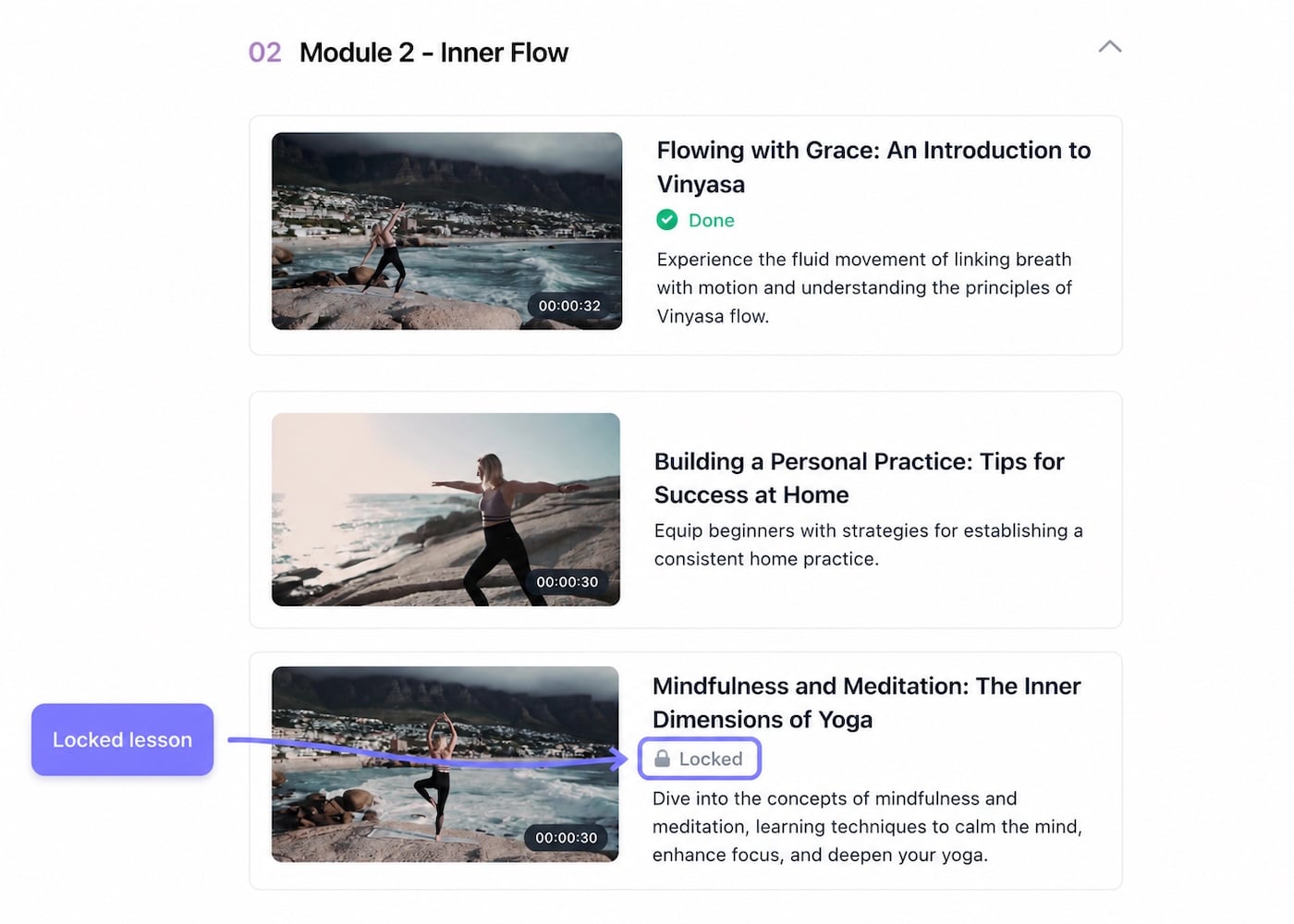
When Lesson Locking is enabled, locked lessons are still visible to members in the course curriculum but are clearly marked with a padlock icon. Members can see what is coming but cannot open a locked lesson until they have completed the one before it.
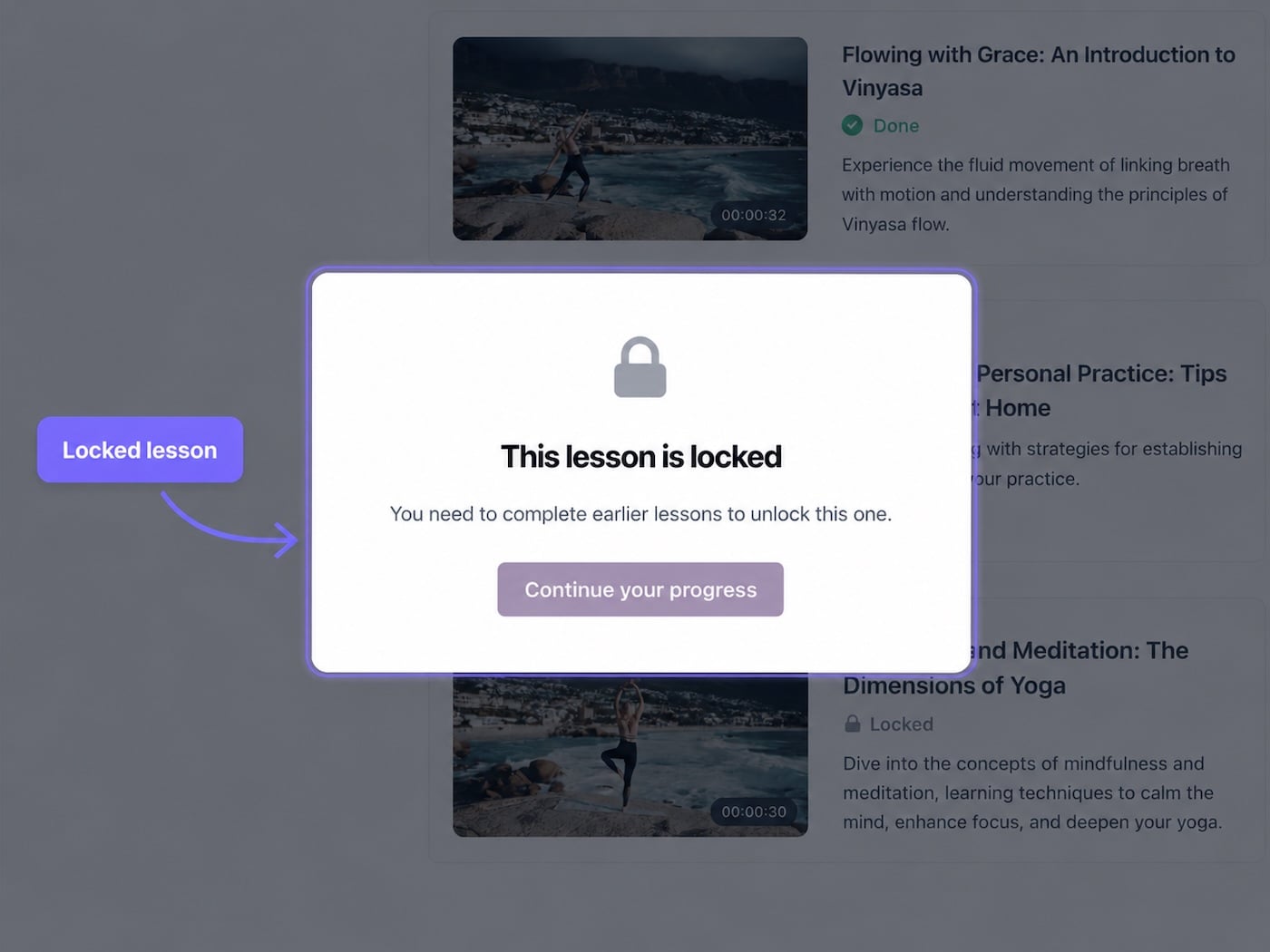
If a member clicks a locked lesson or tries to access one directly via a link, they will see a message that they need to complete the previous lesson first, with a button to take them straight to it.
When a member completes a lesson, the next one unlocks automatically.
Step 3: Lesson Locking and drip scheduling
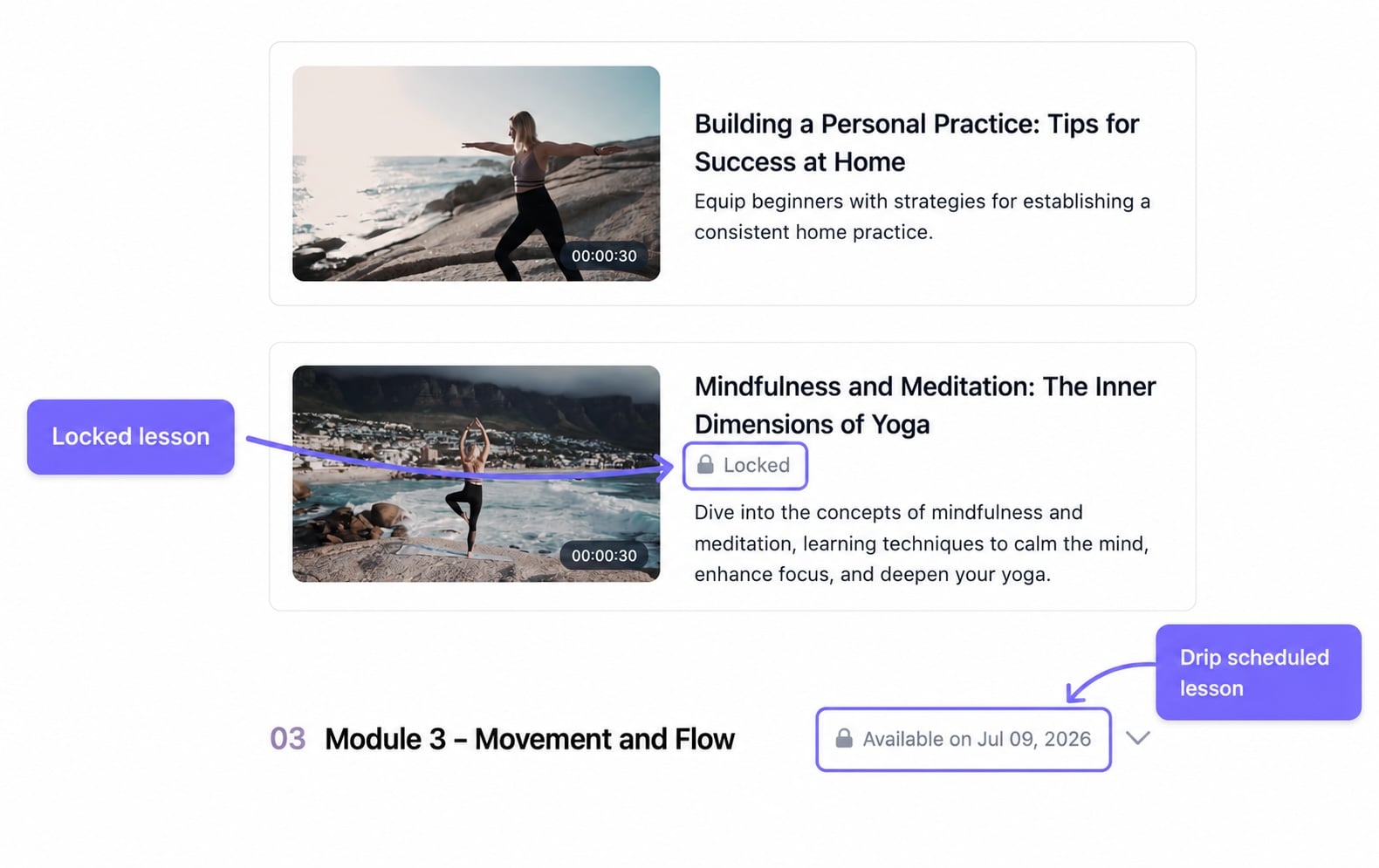
If you use drip scheduling alongside Lesson Locking, both conditions must be satisfied before a member can access a lesson. The drip date must have passed, and the previous lesson must be completed. The two systems work independently, and neither overrides the other.
When both apply to a lesson, the drip date is checked first. Once the drip date has passed, the lesson lock is checked next.
Tips
Enabling Lesson Locking on a course with existing members will not remove access to lessons they have already completed. Their progress is always honoured, and locking applies from their current position forward.
If you reorder lessons in a course with Lesson Locking enabled, member access may be affected based on their existing progress. A warning will be shown before any reorder is saved.
Lesson Locking does not affect how lessons are displayed in the admin. It only controls access to members in the course.
Need help? Reply to any Kourses email or contact us via the help button in your account.