The Product Settings page controls the core details and appearance of a product in your members area. From here you can manage everything from the product name and URL through to visibility, cover images, and more.
Set the title and subtitle for your product — this is essentially the product name as it will appear to your members. The course homepage will use these by default, though they can be overridden or hidden in the Course Homepage settings.
Each product has its own URL which is the link you share with members to access the product. This URL is editable, allowing you to customise it to match your branding or content.
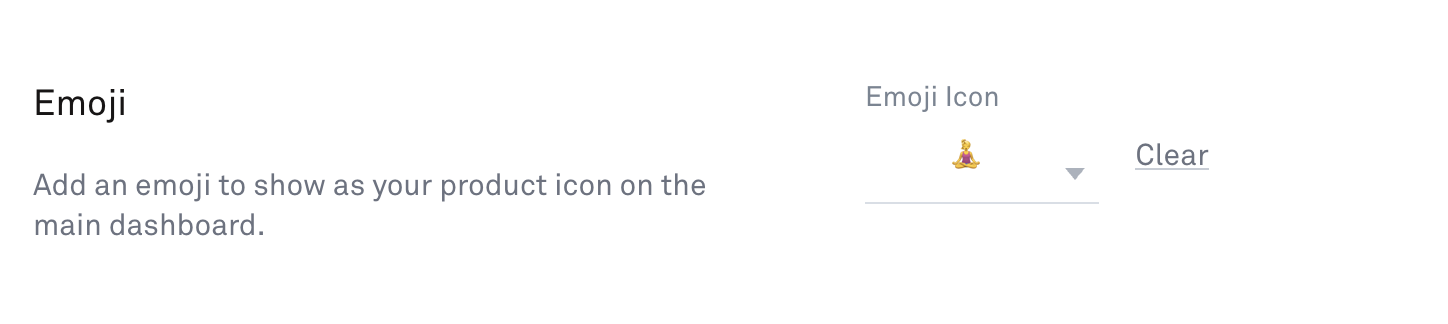
Choose an icon or emoji to represent this product in your members area sidebar, where it will appear alongside the product name. You can select from the built-in icon and emoji library.
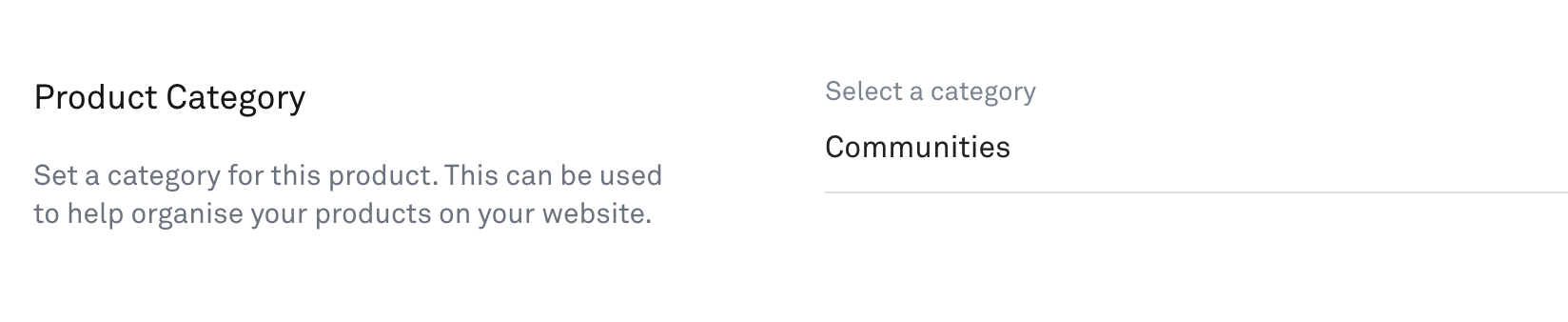
Assign this product to a category to organise how your products are grouped in the members area sidebar. You can select an existing category or create a new one using the dropdown.

Note: Below are details on the Lock Screen options. Please see the note above about moving to the new Promote and Sales Pop settings.
The lock screen is displayed to members who do not have access to the product but attempt to access it. You can customise what is shown on the Lock Screen.
Lock Screen Heading (headline)
Lock Screen Text: (Sales copy - text, bullets, and images)
Button Label: (The text on your call-to-action button)
Button Label Link: (A link through to your checkout/promotion page)
You can add two images to your product:
Product cover: Displayed at the top of the product page in your members area.
Course thumbnail: Shown wherever the product is referenced around your members area.
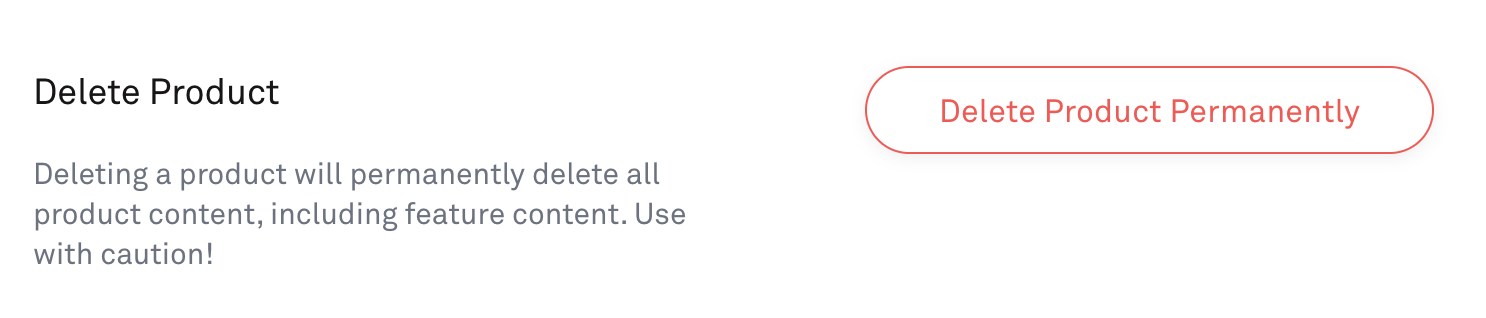
You can permanently delete a product from the bottom of the Product Settings page. Treat this with caution — deleting a product cannot be undone and will remove all of its content.