Course certificates are automatically generated the moment a member completes 100% of a course. Once set up, there's nothing more for you to do; Kourses handles the rest.
With course certificates, you can:
Reward members with a professional credential on course completion
Motivate members to complete your course with something to work towards
Automatically issue and store certificates without any manual work
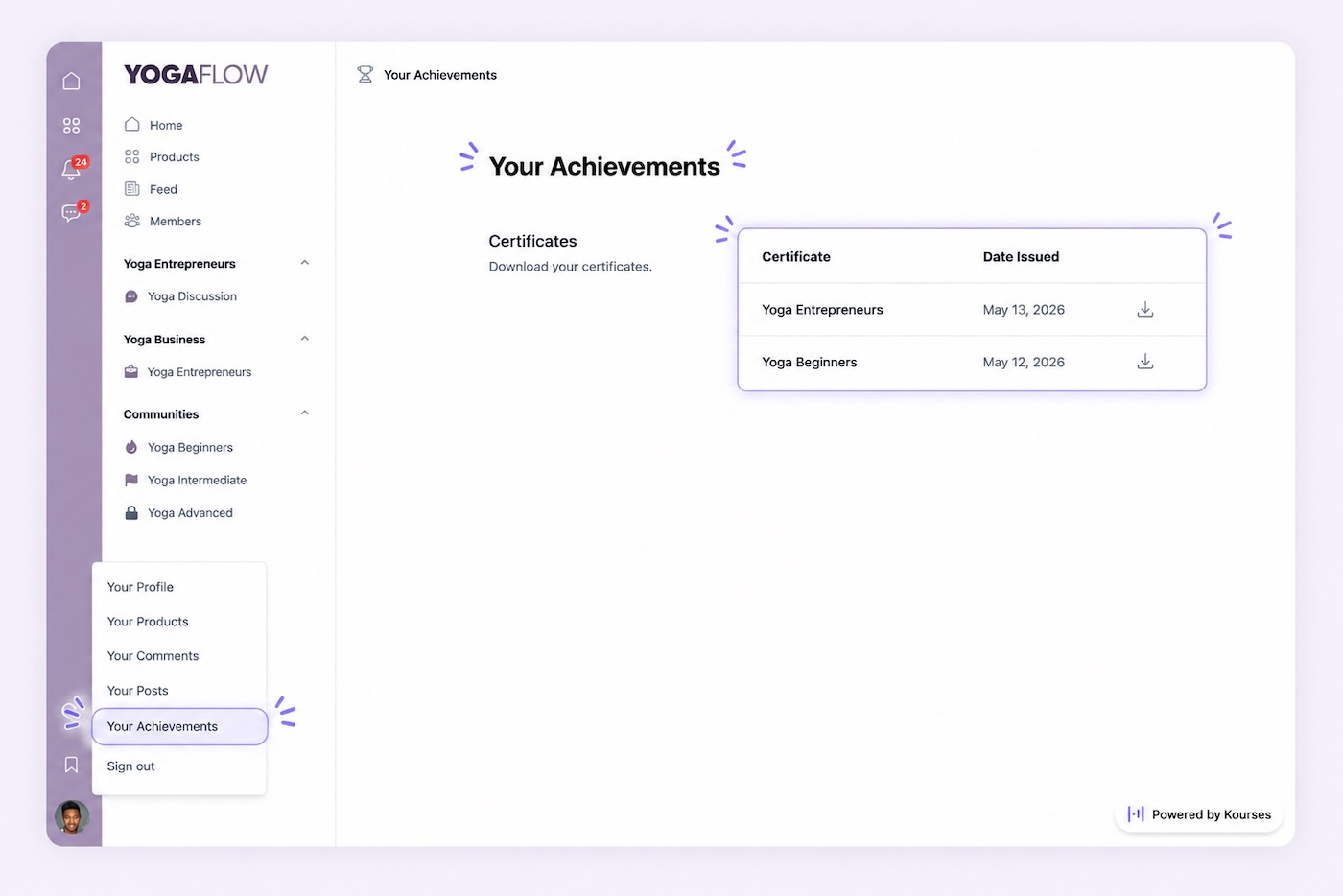
Give members permanent access to their certificates from their Achievements profile section
Navigate to your Products and open the course you want to add a certificate to.
In the course menu, click the Certificate tab.
You'll see the Enable Certificates toggle; it must be enabled before you can edit any certificate settings.
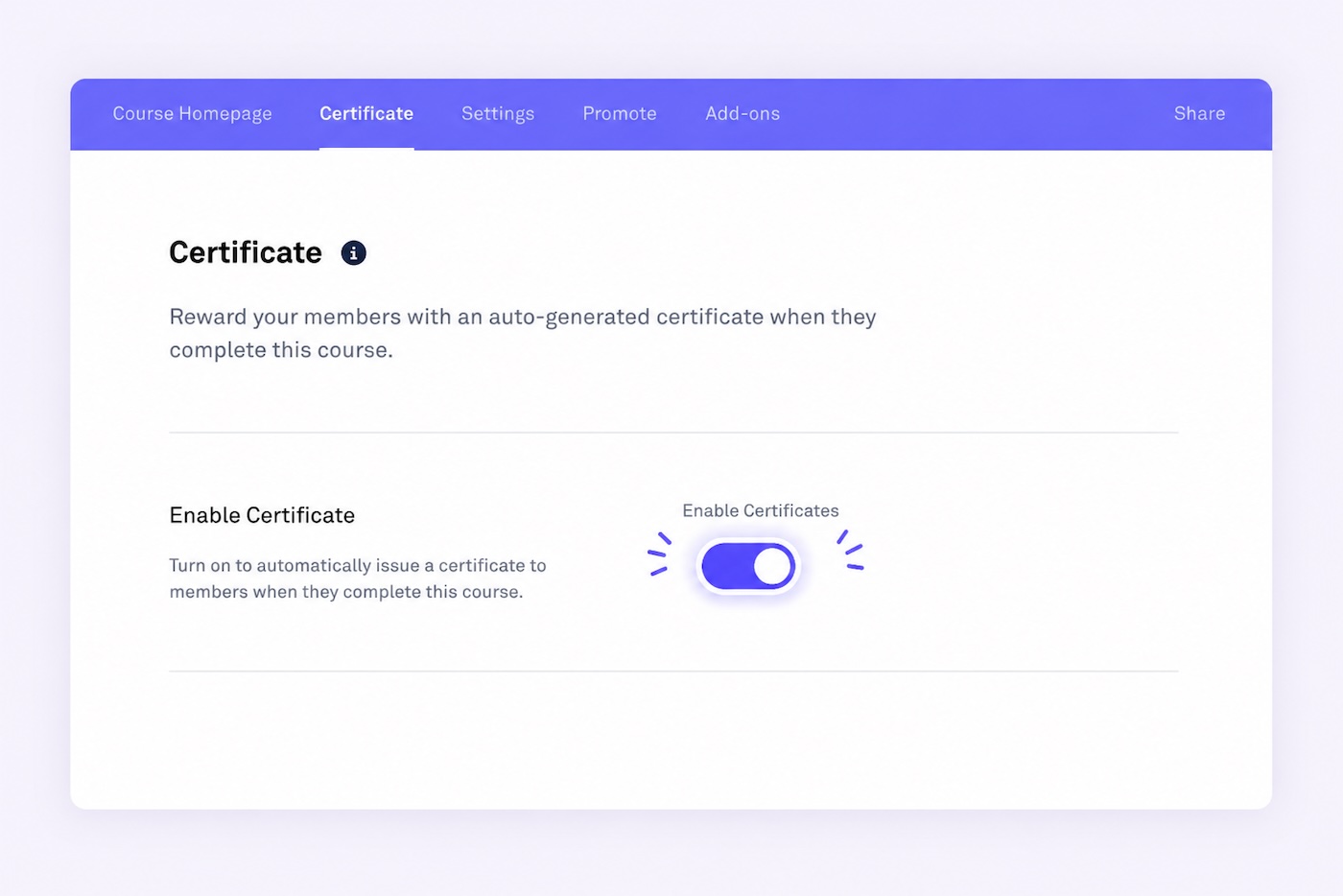
Once enabled, customise your certificate to match your brand and course.
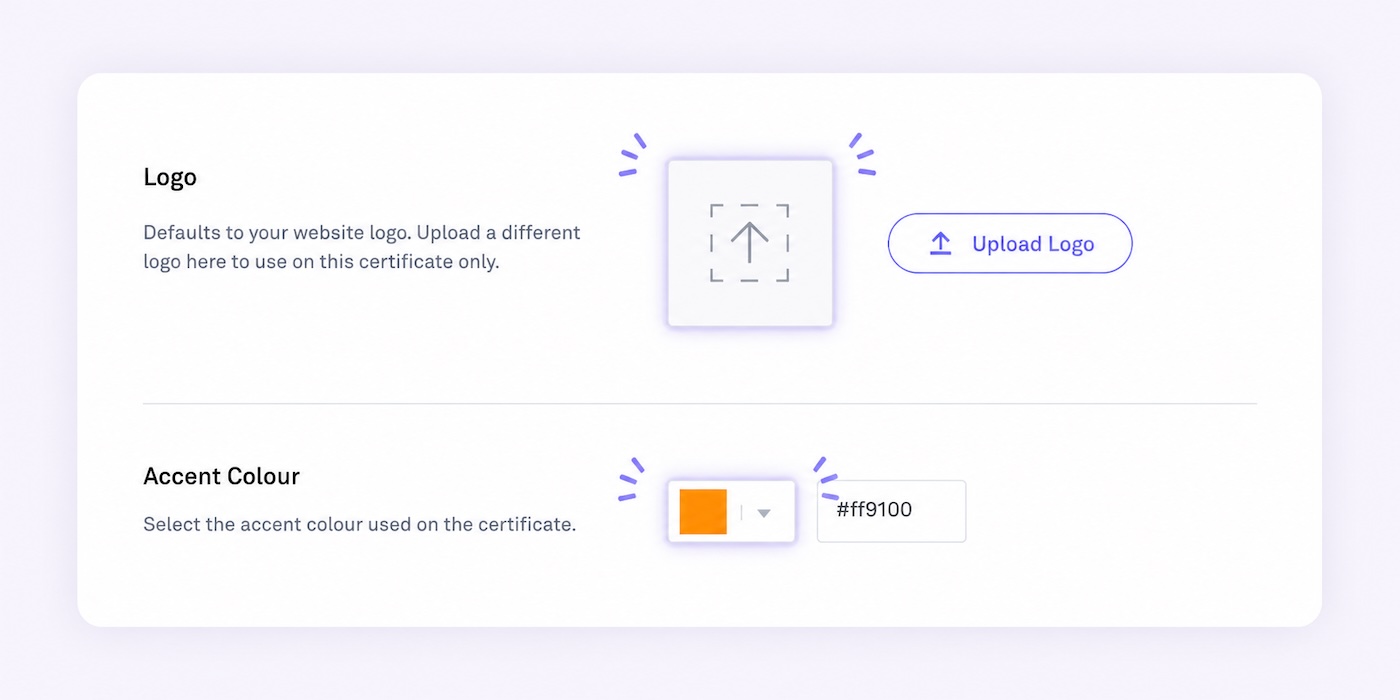
Logo
Your logo is automatically pulled from your website settings and applied to the certificate.
To use a different logo for this course, click Upload logo and upload an alternative.
Accent colour
Your accent colour is automatically pulled from your website settings and applied to the certificate.
To use a different colour for this certificate, click the colour swatch and enter a new hex value.
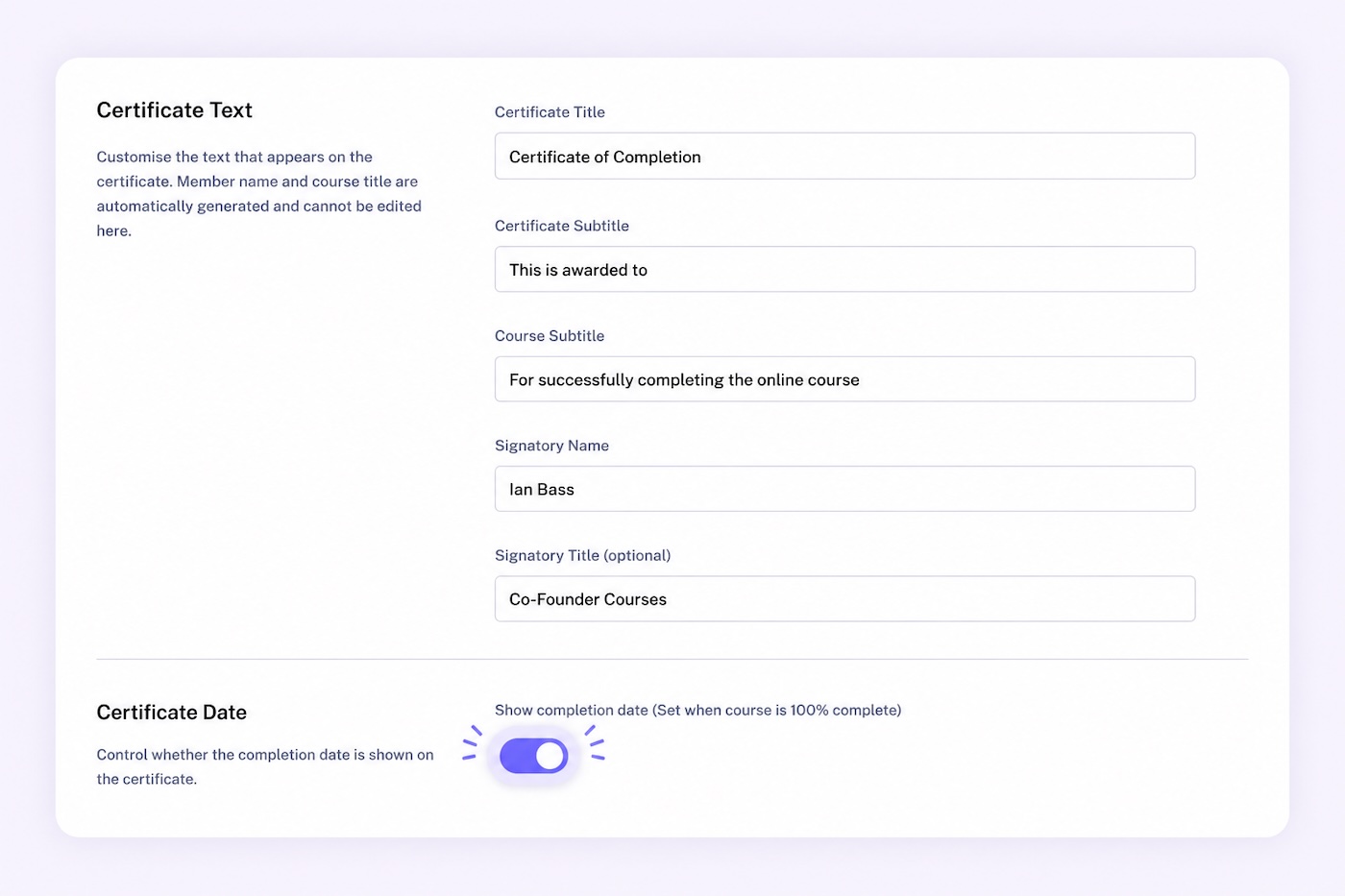
Certificate text
Enter your Certificate title - defaults to "Certificate of Completion."
Enter your Certificate subtitle - defaults to "This is awarded to."
Enter your Course subtitle - defaults to "For successfully completing the online course."
Enter your Signatory name - defaults to your account name. This appears on the certificate's signature line.
Optionally enter a Signatory title - such as "Lead Instructor" or "Head Coach."
Certificate date
The completion date is shown on the certificate by default. Toggle this off if you prefer not to display it.
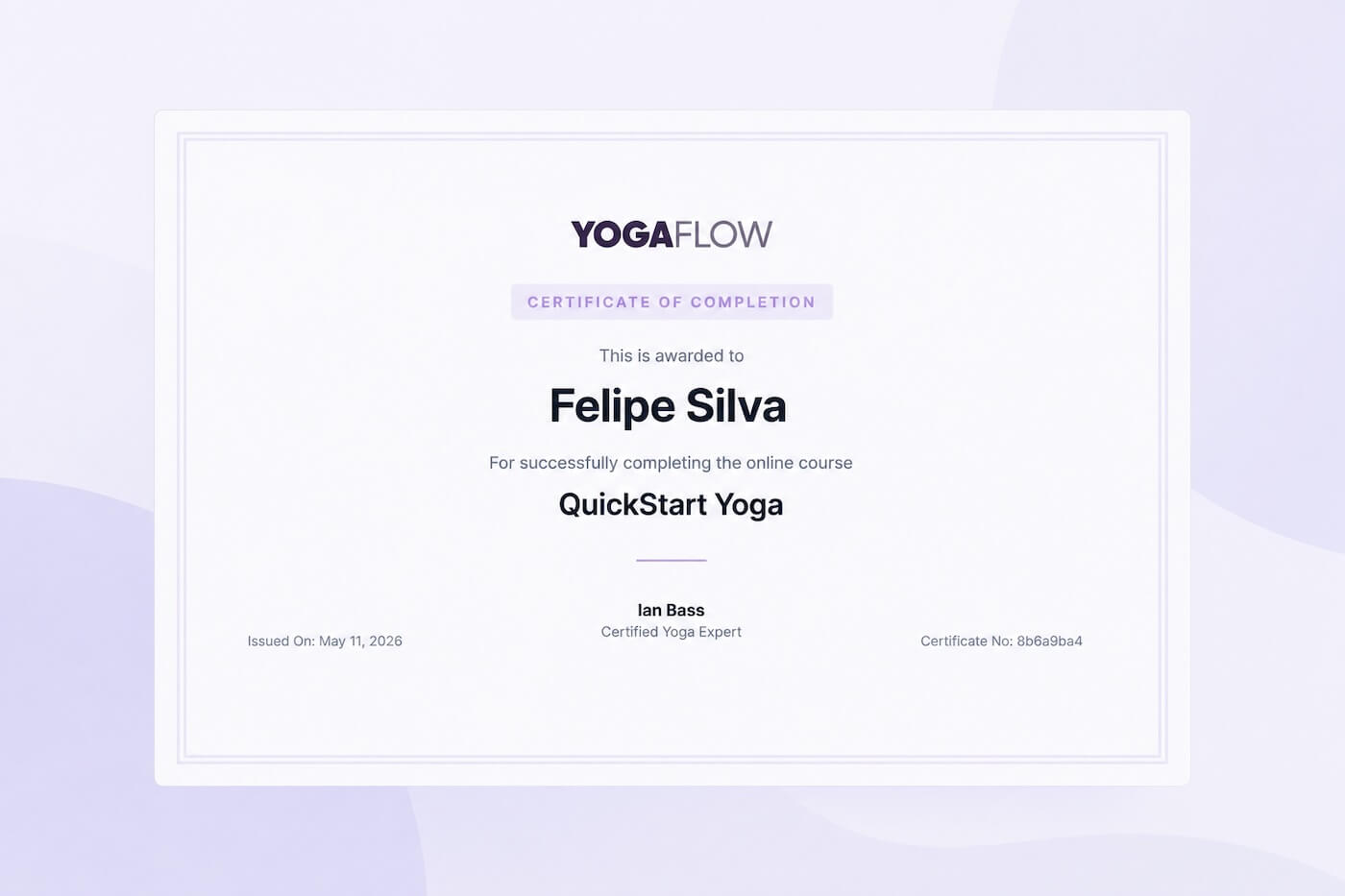
Click the Preview button to see exactly what your members will receive.
The preview reflects your current saved settings.
Make any final adjustments.
Click Save changes.
Certificates are now active. Kourses will automatically generate and issue a certificate to any member who completes 100% of the published lessons in this course.
Once a member completes your course, their certificate is available in two places:
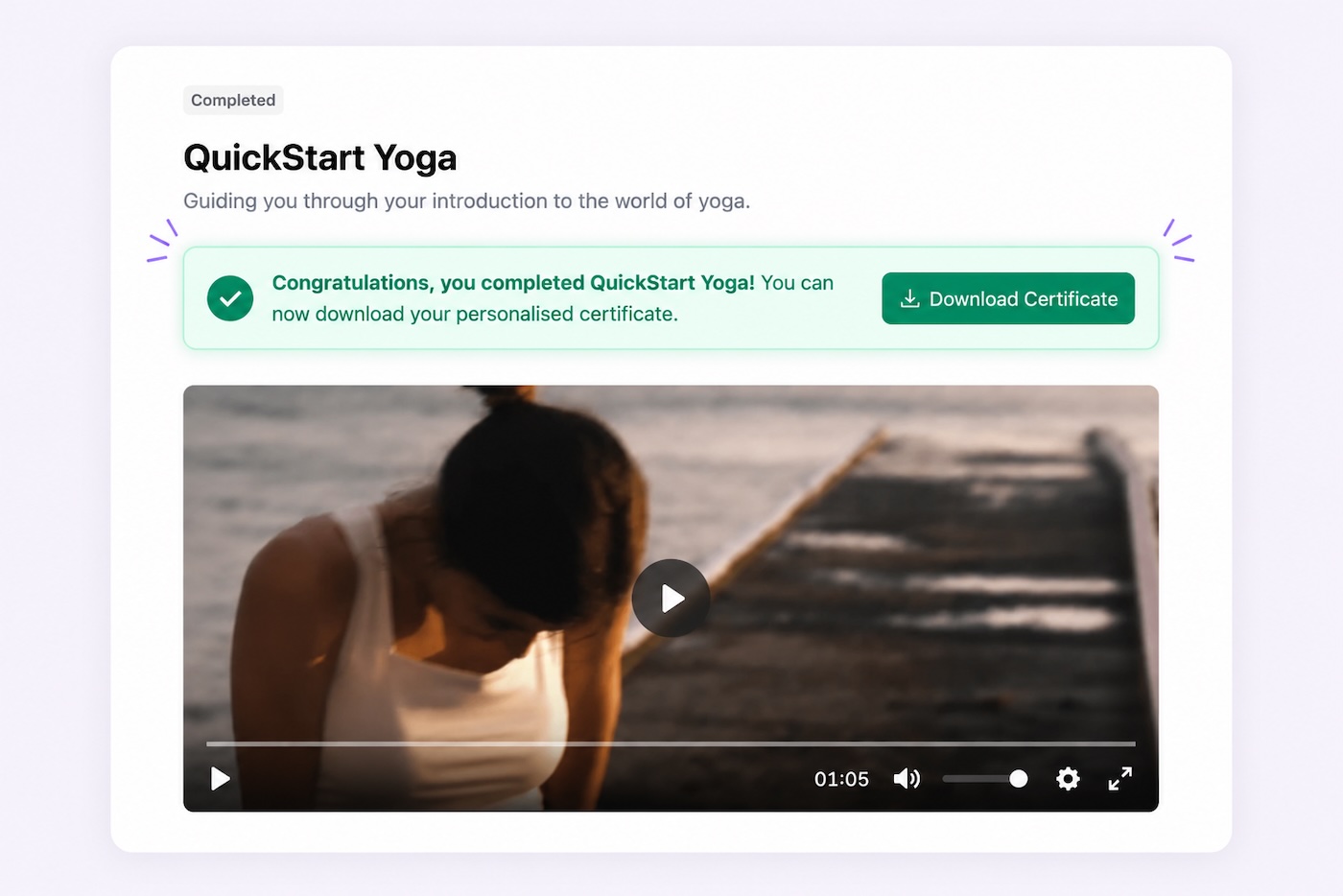
Course home page - a download button appears on the course home page the moment the course is completed.
Achievements section - every certificate a member earns is stored permanently in the Achievements section of their profile. Members can access and download their certificates here at any time.
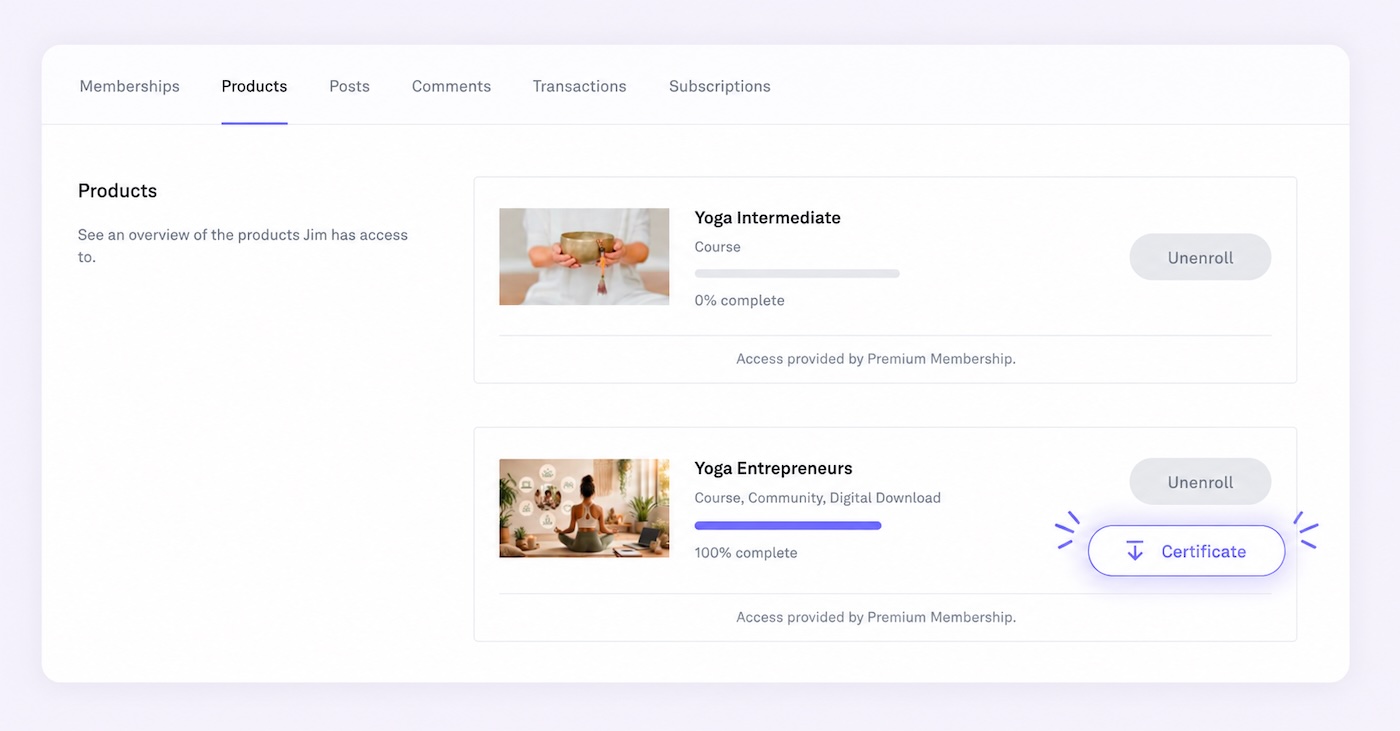
If a member needs help accessing their certificate, you can download it on their behalf.
Go to Members and open the member's profile.
Click the Products tab.
Find the course and click Download certificate.
Set your signatory title to add credibility - "Certified Yoga Instructor" or "Founder" gives the certificate a more professional feel.
Preview before enabling to confirm your logo, accent colour, and text all look right before members start receiving certificates.
Certificates are generated once at the point of completion and stored permanently - if you update your certificate settings after members have already completed the course, existing certificates will not be updated.
Each certificate includes a unique serial number automatically - there's nothing to configure for this.
Need help? Reply to any Kourses email or contact us via the help button in your account, and we'll be happy to assist.

