Note: Quizzes are available on all plans. Generate with AI uses the AI credits included in your plan. If you've used your allowance, you can buy more credits or upgrade your plan from your “Manage Kourses Account” screen.
Quizzes let you check members have understood your course before they move on. With a quiz you can:
Test understanding after a lesson, at the end of a module or across the whole course
Generate questions from your lesson content with AI
Set a pass mark and require a pass to unlock the next lesson
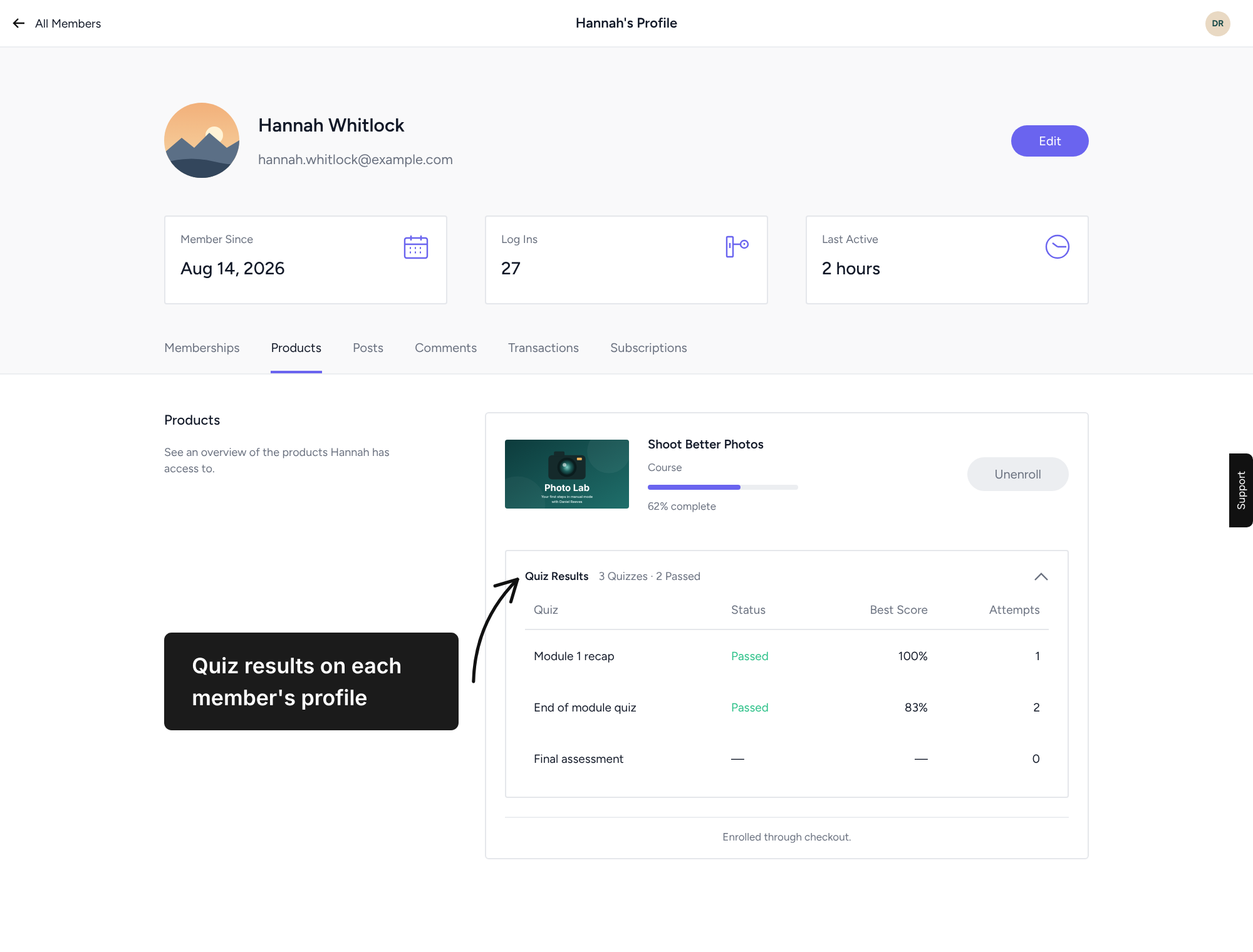
See each member's results on their profile
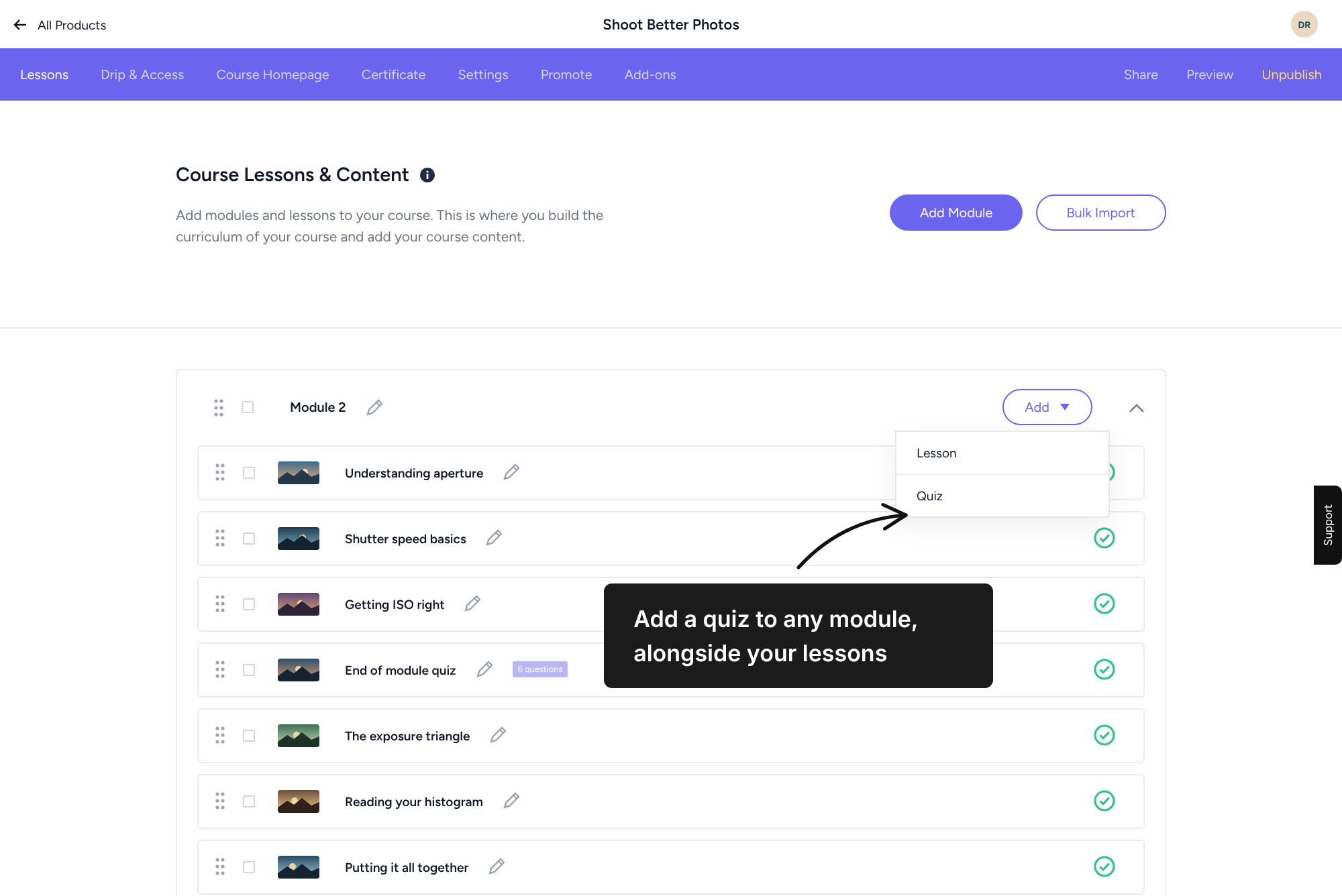
Open the course and go to its curriculum.
In the module where you want the quiz, click Add and choose Quiz.
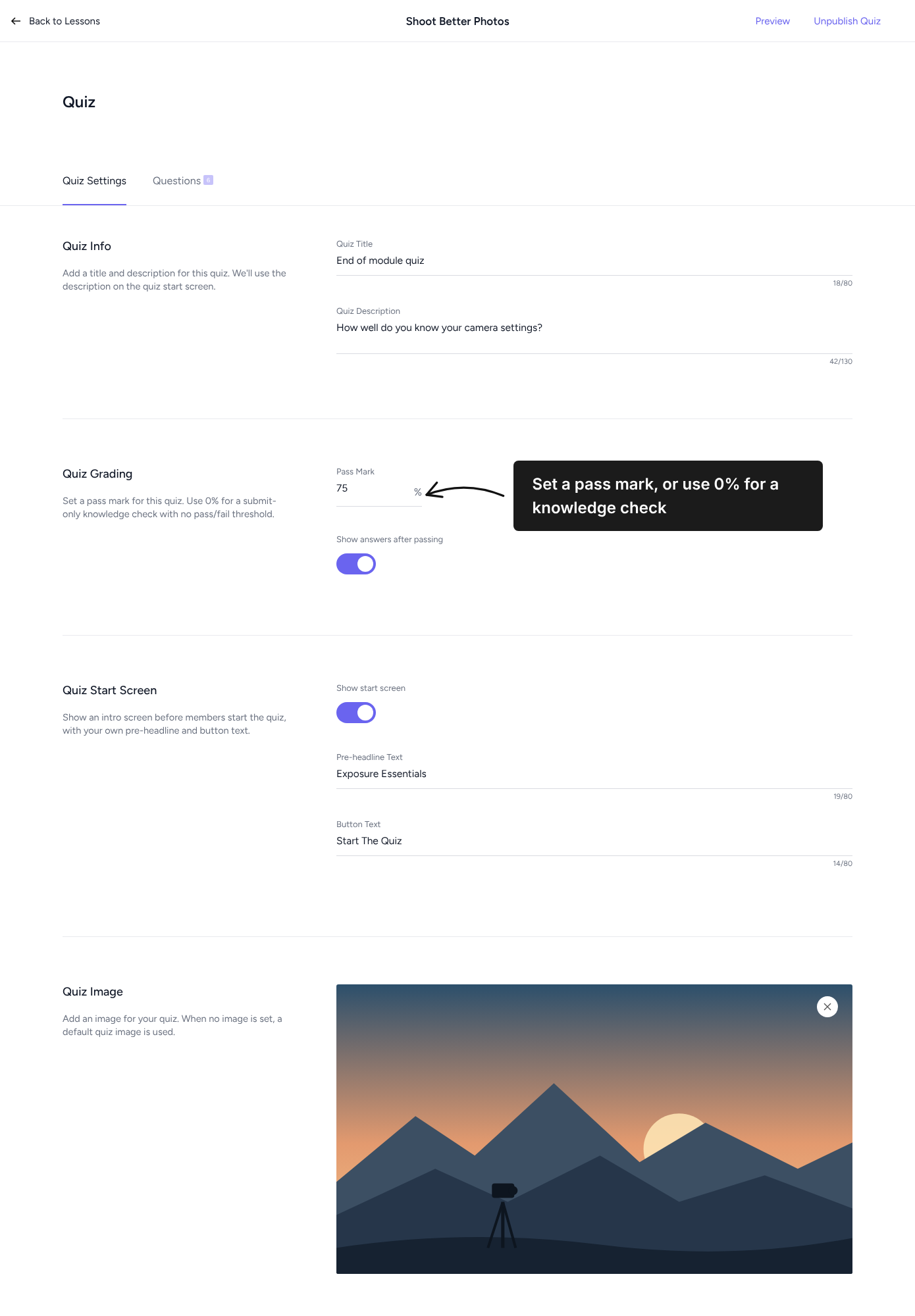
The quiz builder opens on the Quiz Settings tab.
Under Quiz Info, enter a Quiz Title and Quiz Description. The description appears on the quiz start screen.
Under Quiz Grading, enter the Pass Mark as a percentage. Use 0% for a knowledge check with no pass or fail.
Turn on Show answers after passing if you want members to be able to review their answers once they pass.
Under Quiz Start Screen, turn on Show start screen to show an intro before the first question, then add your Pre-headline Text and Button Text.
Under Quiz Image, upload an image. If you don't add one, a default quiz image is used.
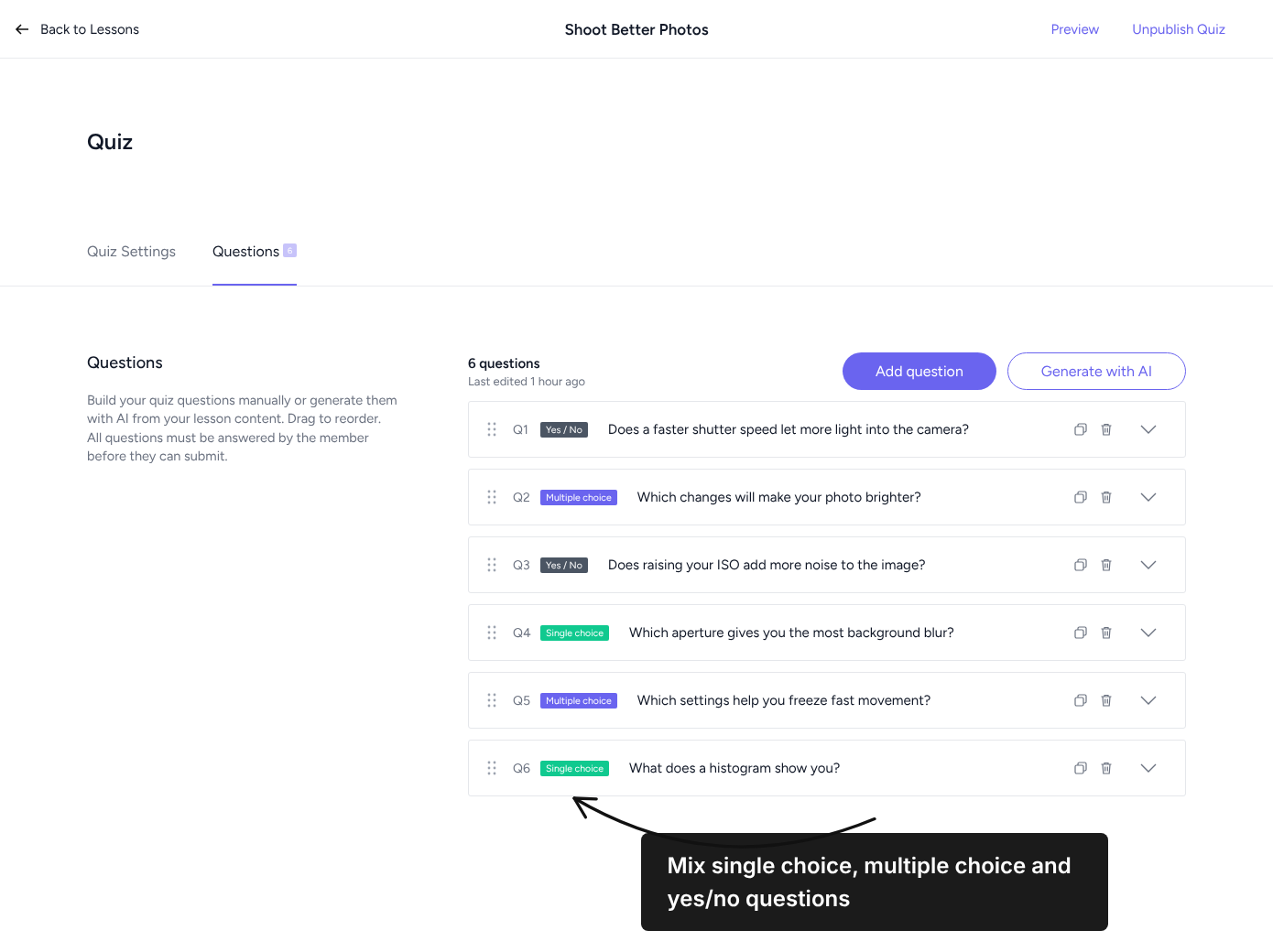
Open the Questions tab.
Click Add question and choose Single choice, Multiple choice or Yes / No.
Enter the question and answers, and mark the correct answer or answers.
Drag questions to reorder them. Use the icons on each question to duplicate or delete it.
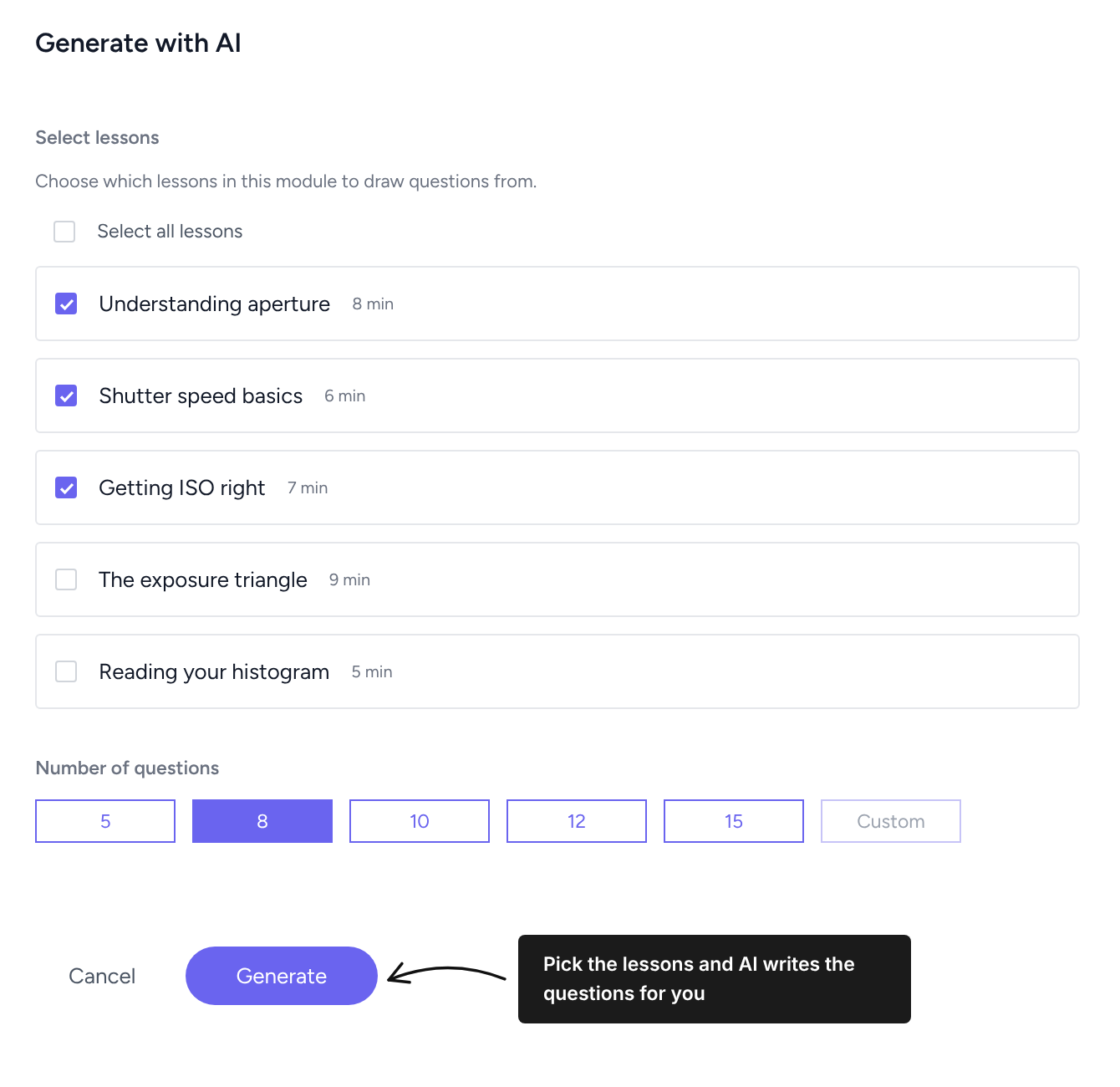
On the Questions tab, click Generate with AI.
Under Select lessons, tick the lessons in this module to draw questions from, or tick Select all lessons.
Under Number of questions, choose 5, 8, 10, 12, 15 or Custom.
Click Generate. The questions are added to your list, where you can edit, reorder or delete them.
Lessons need written content or a processed video transcript. A lesson whose video is still being transcribed shows as unavailable until it's ready.
Click Preview to take the quiz as a member would.
Click Publish Quiz to make it live. Members will see it in the curriculum alongside your lessons.
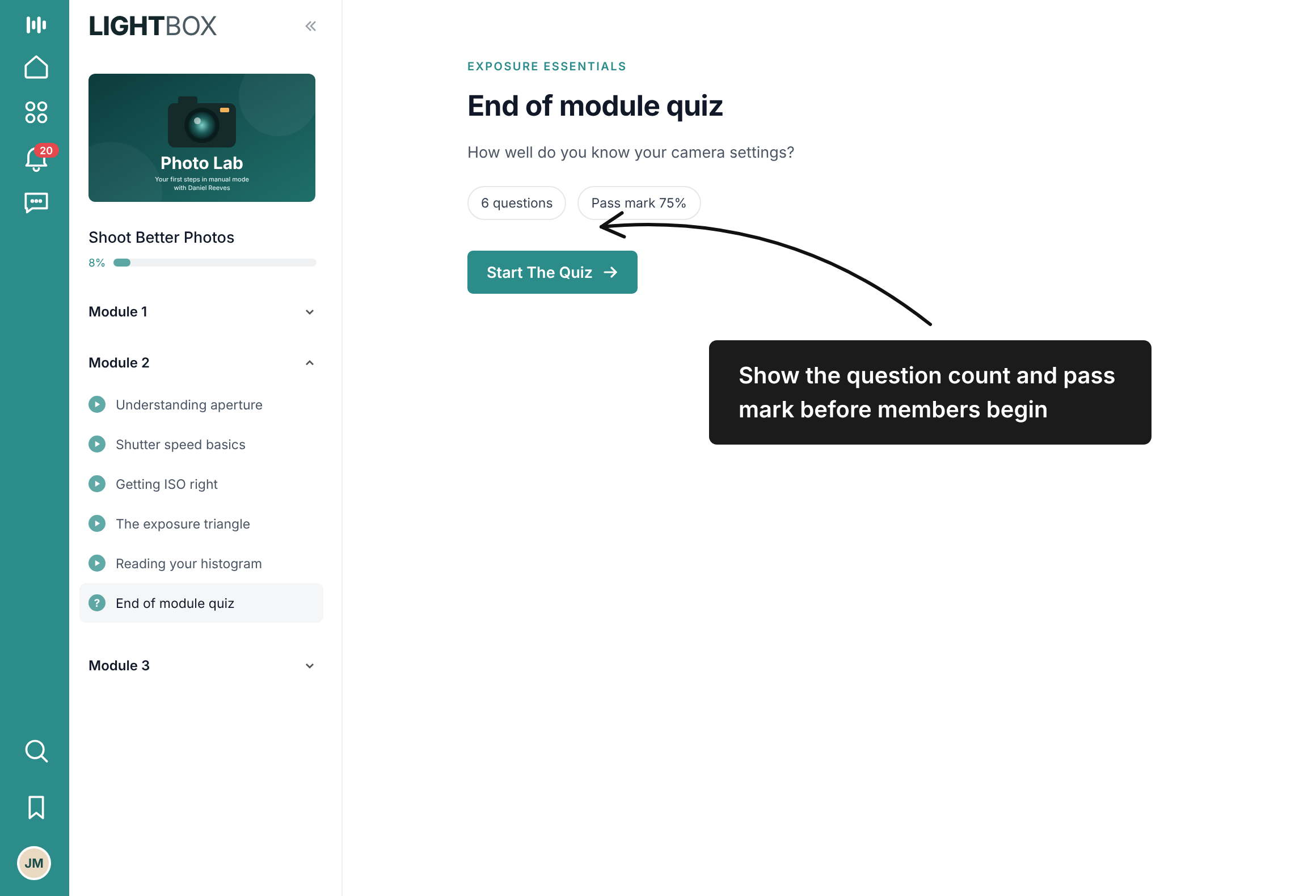
Turn on Locked Lessons for the course and each lesson stays locked until the member completes the one before it. A quiz only counts as complete once the member passes, so members can't move past a quiz until they've passed it.
Viewing results
Open a member's profile and go to the Products tab. Under the course, you'll see each quiz with the member's pass or fail status, best score and number of attempts.
Keep quizzes short. Five to ten questions is enough to check understanding without slowing members down.
Use a 0% pass mark for recaps partway through a module, and save pass marks for end-of-module checks.
Read through AI-generated questions before you publish. You know your content best.
Wait for video transcripts to finish processing before generating, or those lessons won't be available to select.
Members who choose to review their answers can't retake that quiz afterwards, so consider this when you turn on Show answers after passing.
Need help? Reply to any Kourses email or contact us via the help button in your account.