Drip scheduling lets you control when course content is released to members after they enrol. Rather than giving members access to everything at once, you can release modules or lessons gradually over time to keep them engaged and progressing through your course.
If you choose not to set a drip schedule, all course content will be instantly available to members from the moment they enrol.
The first setting on the Drip Scheduling page is a toggle that controls whether content is released per module or per lesson:
Toggle off (default): Content is dripped per module. Each module is released as a whole after a set number of days.
Toggle on: Content is dripped per lesson. You can set a release day for each individual lesson across the course.

To set a drip schedule, click Set Schedule next to a module or lesson. You can then specify how many days after enrolment that piece of content will be released.
For example, a daily lesson drip schedule might look like this:
Lesson 1 — released instantly (day 0)
Lesson 2 — released after 1 day
Lesson 3 — released after 2 days
Lesson 4 — released after 3 days
With this setup, members receive a new lesson every day after enrolment.
Once you have configured your schedule, click Save to apply the changes.
You can choose to notify members by email when new content becomes available. To enable this, tick the notification checkbox in the drip settings. This will reveal options to customise:
The email subject line
The email body

Click the variables icon to insert dynamic variables into your email — such as the member's name or the lesson title — to make the notification feel more personal.
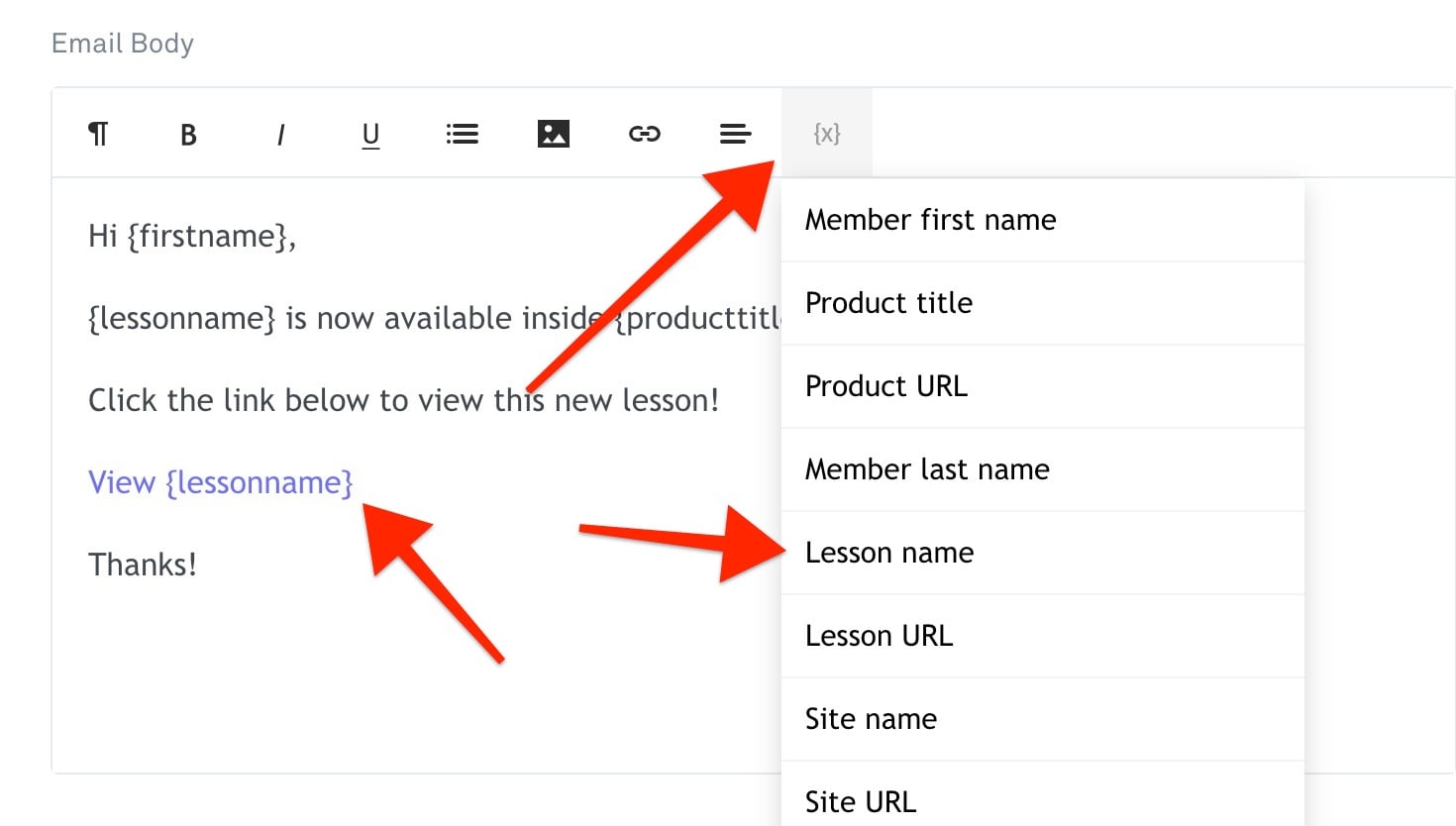
We recommend keeping these notification emails focused solely on announcing the new content. A short, clear message that directs members straight to their new lesson tends to perform best.
Notification emails are sent to members at 11am Eastern Time on the day their content is released.
How to Lock Lessons and Control Course Progression
Learn how to use Lesson Locking to ensure members complete your course in order, step by step.
How to add, edit and manage your course modules & lessons
The Course Content page is where you build and manage the structure of your course.
How to add a new lesson to a course
How to add a new lesson to a course