

The Course Homepage settings let you control the look and feel of the first page your members see when they access your course. From here you can set the title, add a description and welcome video, and configure lesson comments.
Title & Subtitle
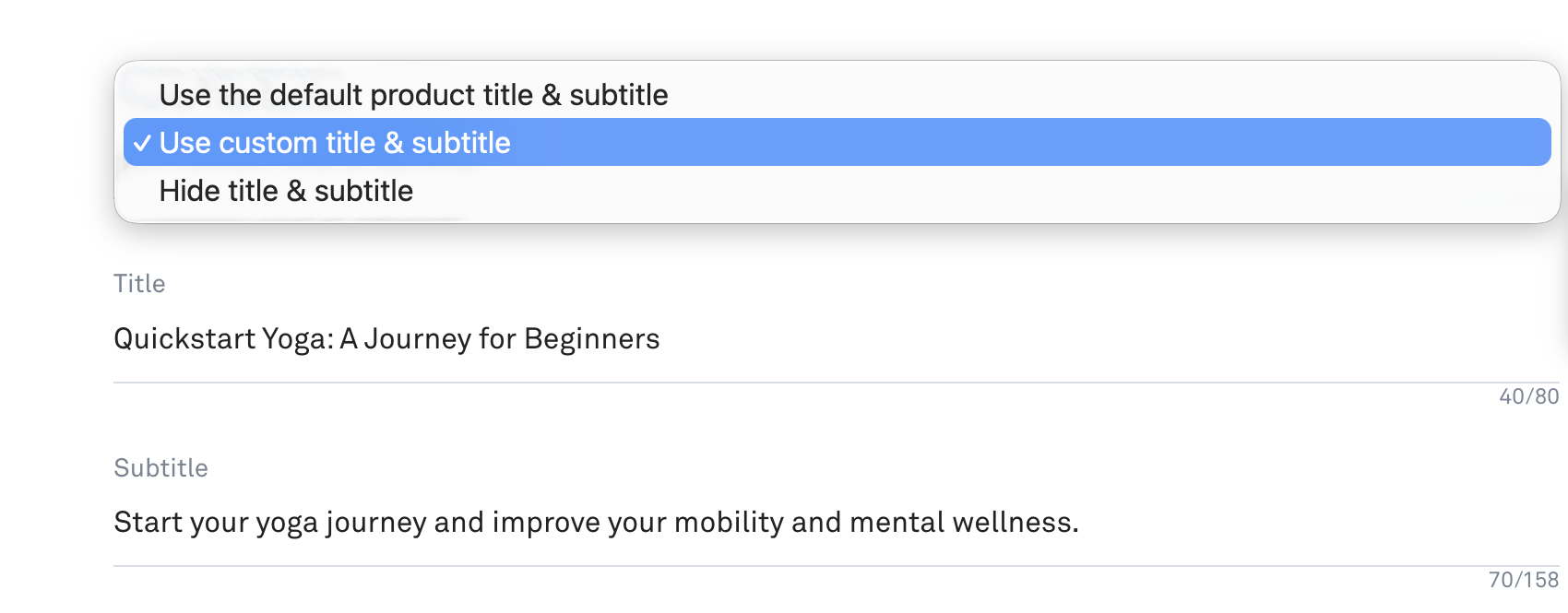
By default, the course homepage uses the product title and subtitle set on the Settings page. Using the dropdown, you can change this behaviour:
Use product title and subtitle: The default setting, pulling the title and subtitle directly from your product settings.
Custom title and subtitle: Enter a different title and subtitle specifically for the course homepage.
Hidden: Hide the title and subtitle from the course homepage entirely.
Course Description
Use the description field to add context and set expectations for your members. The editor supports text, bullet points, and images. This is a great place to outline the goals and milestones of your course so members know what to expect before they dive in.
Welcome Video
You can add a welcome video to introduce yourself and give members an overview of the course. There are two ways to add your video:
External URL: Paste in a link from an external video host such as YouTube or Vimeo.
Upload directly: Upload your video using Kourses' built-in superfast video hosting.
Lesson Comments
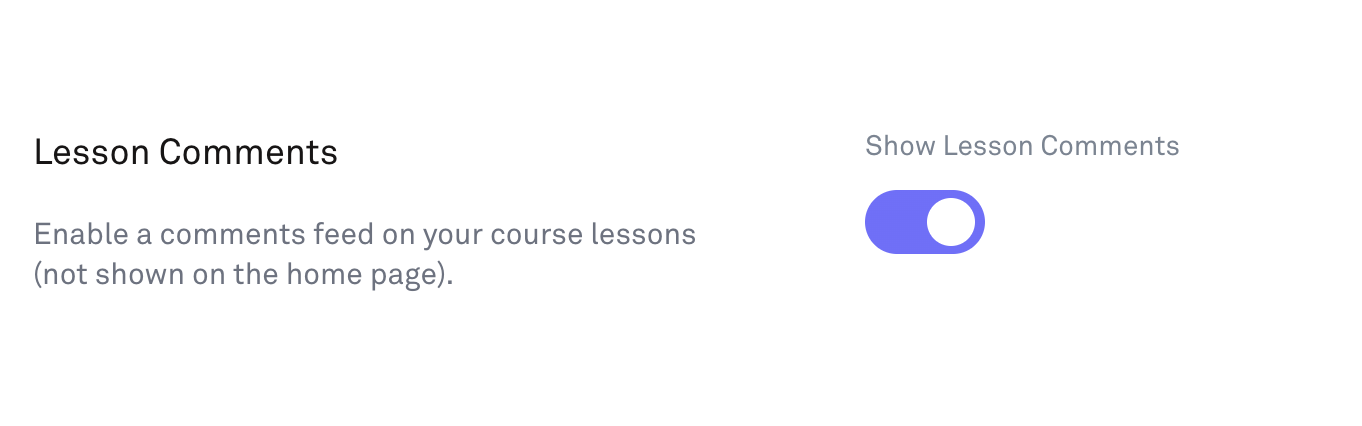
Use this toggle to enable or disable comments across your course. When enabled, a comments feed will appear below every lesson — giving members a space to ask questions and engage with your content. Note that lesson comments do not appear on the course homepage itself, only on individual lesson pages.
What Your Members See
On the live course homepage, members will see the following in order:
The course title and subtitle
The welcome video
The course description
The course modules and lessons
Related articles
How to set up drip scheduling for your courses
Control when course content is released to members after they enrol.
How to add a new lesson to a course
How to add a new lesson to a course
How to add, edit and manage your course modules & lessons
The Course Content page is where you build and manage the structure of your course.